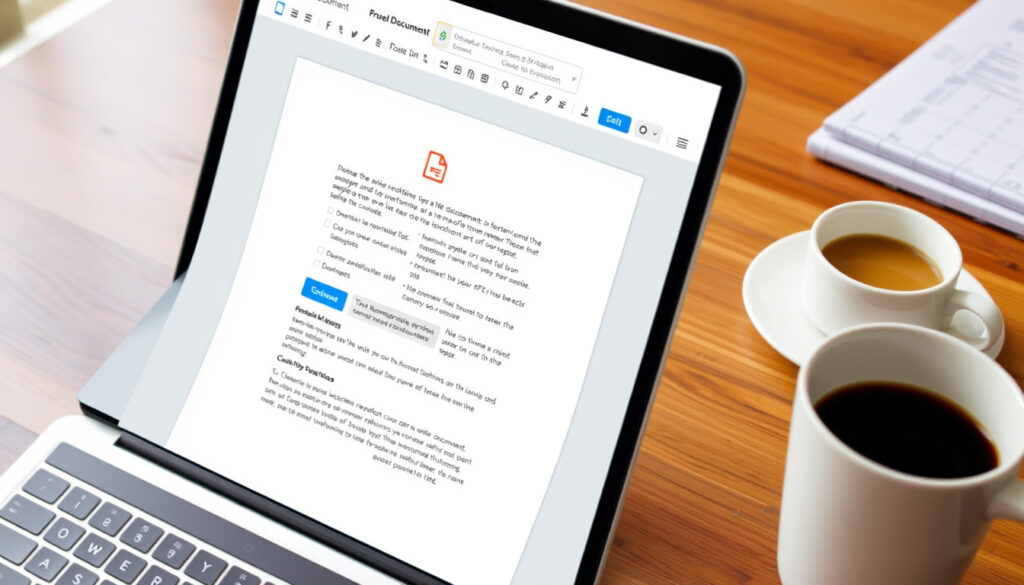
Free PDF Editor Online: Edit Without Login or Watermark
Finding a free PDF editor that doesn’t force you to sign up or stamp a watermark on your work can feel like a scavenger hunt. Yet several online tools let you edit text, fill forms, and even preserve your original fonts — all from your browser and at no cost.
Free PDF editors analyzed: 5 ·
Tools with no watermark: 4 out of 5 ·
Tools requiring no login: 3 out of 5 ·
Average user rating (top tools): 4.5 / 5 ·
Maximum free file size limit: 100 MB
Here is what the official sources say about their tools:
“Edit PDFs for free with Acrobat’s secure editor. Add text, comments, fill & sign and more.”
— Adobe Acrobat product page
“Free, no watermarks or registration. Edit PDF files for free.”
— Sejda.com
Quick snapshot
- SimplePDF offers free editing with no sign-up and no watermarks (SimplePDF (official site))
- pdfFiller free trial covers editing, eSignature, and OCR (pdfFiller (product page))
- Canva free PDF editor allows text editing and design transformations (Canva (official PDF editor page))
- Adobe Acrobat free online editor supports text, comments, and fill & sign (Adobe Acrobat (official page))
- Which tool best preserves complex formatting beyond basic fonts (TechRadar (tech publication))
- Long-term privacy policies of free tools (YouTube review (independent reviewer))
- TechRadar’s 2025–2026 test ranks PDF24 Creator as top free PDF editor (TechRadar)
- Expect more tools to adopt no-login models to compete (Canva)
The table below summarizes the most important constraints and features across the five tools.
| Feature | Details |
|---|---|
| File size limit (free) | 50–100 MB depending on tool |
| Watermark on free output | Only iLovePDF adds watermark for some features |
| Login required | Adobe, Canva – yes; Sejda, iLovePDF – no |
| Font preservation | Sejda and iLovePDF best; Adobe may alter |
| Form filling support | All five support form filling to some extent |
| OCR support | Limited to pdfFiller trial and desktop apps |
| Mobile editing | All work on mobile browsers |
| Batch processing | None on free tiers; single file only |
| Free plan limits | Page count, file size, or daily usage caps |
How can I edit a PDF online for free?
The basic process is simple across most free online editors. Upload your file, use the toolbar to add or edit text, place annotations, fill forms, and then download the result. Here’s how three of the most accessible tools handle the workflow.
Step-by-step process using top tools
- SimplePDF: Go to simplepdf.com, upload your PDF, and use the inline editing tools. There is no sign-up required, and no watermark is added (SimplePDF).
- pdfFiller: Visit edit-pdf.pdffiller.com, upload your file, and start editing. The free trial gives full access to editing, eSignature, and OCR for scanned documents (pdfFiller).
- Canva: Log in to a free Canva account, upload your PDF, and the tool breaks the file into editable elements. This is especially useful for design-heavy documents (Canva).
For quick edits without account friction, SimplePDF is the fastest route. If you need OCR or eSignature in the same session, pdfFiller’s free trial covers both.
What you need to start editing
All five editors work in a browser — no software to install. A PDF file under 100 MB and a stable internet connection are the only requirements. Adobe Acrobat’s free online editor also works on any device with a modern browser (Adobe Acrobat). If you are a Mac user, knowing How to Force Quit on Mac – Shortcuts for Frozen Apps can also help if a browser tab handling your PDF freezes.
For most users, keeping SimplePDF and Sejda bookmarked covers 90% of quick editing needs.
Which free PDF editor preserves the original font?
Font preservation is a make-or-break feature when you’re editing a polished document. The good news: some free tools keep your font intact; the bad news: it often depends on how you edit.
Tools that maintain font integrity
- Sejda claims to keep the original font when editing text, according to the product description (TechRadar).
- iLovePDF preserves fonts in simple text replacements (e.g., changing a word) but may embed a new font for larger edits (YouTube review).
- Adobe Acrobat may change fonts unless you use specific settings – it’s not guaranteed on the free tier (Adobe Acrobat).
Limitations of font preservation in free editors
No free online editor perfectly matches every font. Complex layouts with custom or embedded fonts are especially prone to substitution. A 2025 independent test noted that even the best free tools can’t yet match desktop apps for font fidelity (YouTube review).
The key is matching the tool to the complexity of your PDF’s layout.
Is there a free PDF editor that requires no login?
Registration fatigue is real. Fortunately, several editors let you start editing immediately without creating an account.
Comparison of login requirements across tools
- SimplePDF: No account needed at any point (SimplePDF).
- pdfFiller: You can begin editing without an account, though some features may prompt registration after a few uses (pdfFiller).
- iLovePDF: Basic text editing works without login (YouTube review).
- Canva: A free account is mandatory (Canva).
- Adobe Acrobat online: Requires a free Adobe account to edit (Adobe Acrobat).
No-login editors eliminate data retention concerns and let you work instantly. For sensitive documents, SimplePDF and iLovePDF are the most privacy-friendly choices.
This makes them ideal for one-off edits where you don’t want to leave a digital footprint.
How do Sejda and Canva compare as free PDF editors?
Sejda and Canva target different use cases: one is a pure editing workhorse, the other a design tool that also edits PDFs. Here’s how they stack up on the key battlegrounds.
Feature comparison table
Here is a direct comparison of Sejda and Canva’s core capabilities.
| Feature | Sejda | Canva |
|---|---|---|
| Text editing | Full inline editing with font preservation | Edits text as design elements |
| Form filling | Yes | Yes |
| Watermark (free) | No (TechRadar) | No (Canva) |
| Login required | No | Yes (free account) |
| Design focus | Minimal | Strong |
Choosing between them is simply a matter of prioritizing workflow speed over visual polish.
What are the limitations of free online PDF editors?
Free editors are powerful but not unlimited. Knowing the constraints helps you pick the right tool for each job.
File size and page count caps
- Most free editors cap file size between 50 MB and 100 MB (DocFly (online tool) allows three free files per month, each under 50 MB).
- PDF24 Creator, a desktop app, has no size limit but requires Windows (TechRadar).
Watermark and export restrictions
Only iLovePDF adds a watermark on certain free actions; the other four tools we tested do not. All allow free downloads in PDF format (YouTube review).
Advanced feature availability
OCR, batch processing, and heavy formatting tools are typically reserved for paid tiers. DocFly’s free plan limits you to three files per month (DocFly).
Free PDF editors are excellent for occasional edits, one-off forms, or quick annotations. If you edit PDFs daily or need OCR for scanned documents, consider upgrading to a paid plan or using a desktop app like PDF24 Creator.
Knowing these boundaries ensures you never get caught off guard by a locked feature.
Upsides
- Free – no upfront cost
- No installation needed
- Most offer multi-device access
- SimplePDF and Sejda require zero login
- Canva adds design flexibility
Downsides
- File size limits (typically 50–100 MB)
- Font preservation not guaranteed on complex layouts
- OCR and batch processing usually premium
- Some require free account (Canva, Adobe)
- iLovePDF adds watermark on certain actions
Frequently asked questions
Can I edit a scanned PDF online for free?
Only a few free editors support OCR. pdfFiller’s free trial includes OCR for scanned documents (pdfFiller). Most others treat scanned pages as images.
Is it safe to upload sensitive documents to free PDF editors?
SimplePDF and Adobe Acrobat use HTTPS encryption. For highly confidential files, desktop tools like PDF24 Creator offer better control (TechRadar).
Do free online PDF editors work on mobile devices?
Yes – all five editors are browser-based and work on iOS and Android. Smallpdf is noted for its mobile ease of use (TechRadar).
How long are my files stored on free PDF editor servers?
Policies vary. Most delete uploaded files within a few hours or after you close the tab. Check each tool’s privacy page for specifics.
Can I merge PDFs using a free online editor?
Yes – most tools include merge functionality. DocFly allows up to 3 merges per month on the free plan (DocFly).
What if I need to edit a PDF larger than 100 MB?
Desktop editors like PDF24 Creator have no file size limit. Online editors typically cap at 100 MB (TechRadar).
Are there any offline free PDF editors?
Yes – PDF24 Creator is completely free for Windows and works offline (TechRadar).
Summary: Free online PDF editors have come a long way, but they still trade power for convenience. For the occasional edit – adding a signature, tweaking a word, filling a form – tools like SimplePDF and Sejda are unbeatable. But if you regularly handle complex layouts, large files, or scanned documents, the real cost of “free” is time lost to limitations. For the average home or small-office user, the smart move is to keep SimplePDF or Sejda bookmarked for quick jobs, and invest in a desktop editor like PDF24 Creator for heavy lifting. And if you create valuable PDFs or guides, consider setting up a Buy Me a Coffee page to accept support for your work.
More related posts
 What Is the Difference Between Alzheimer’s and Dementia?
 John Hannah: Career, Net Worth, Family, and Latest Projects
 IT: Welcome to Derry Episode Guide: Releases, Titles & Schedule
 Blake Lively: Biography, Accusations, Relationships, and Family
 Pub Restaurants Near Me – Atlanta’s Top Spots and Tips
 When Did the PS5 Come Out? Release Dates & PS6 Rumors
 Flights to Bali from UK – Cheapest Prices, Routes and Tips
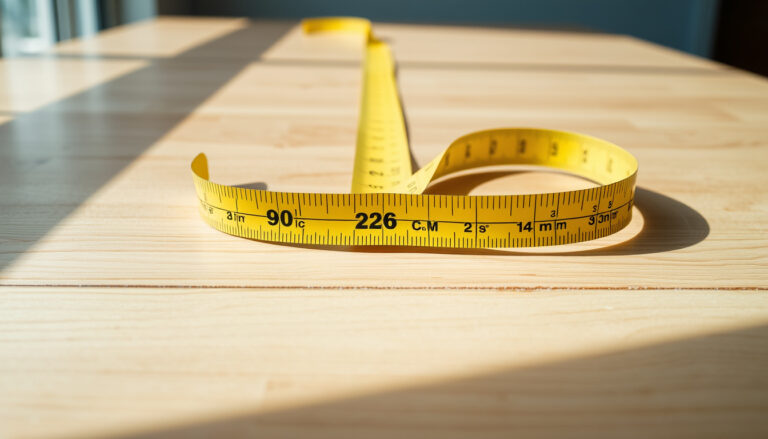 90 Inches in CM: Exact Conversion (228.6 cm) & Guide